--- Install and Mount Google Drive ---
If you can login to your UDrive on HarveyV drop down to Linux Start Here.
If you will connect with Windows start here:
A browser will be automatically opened by this process so you will need to be running an XServer with Xforwarding ON.
One of the best is MobaXterm Xserver -- XMing is on the BU ftp site.
This example will use MobaXterm Xserver to connect to your account on HarveyV.
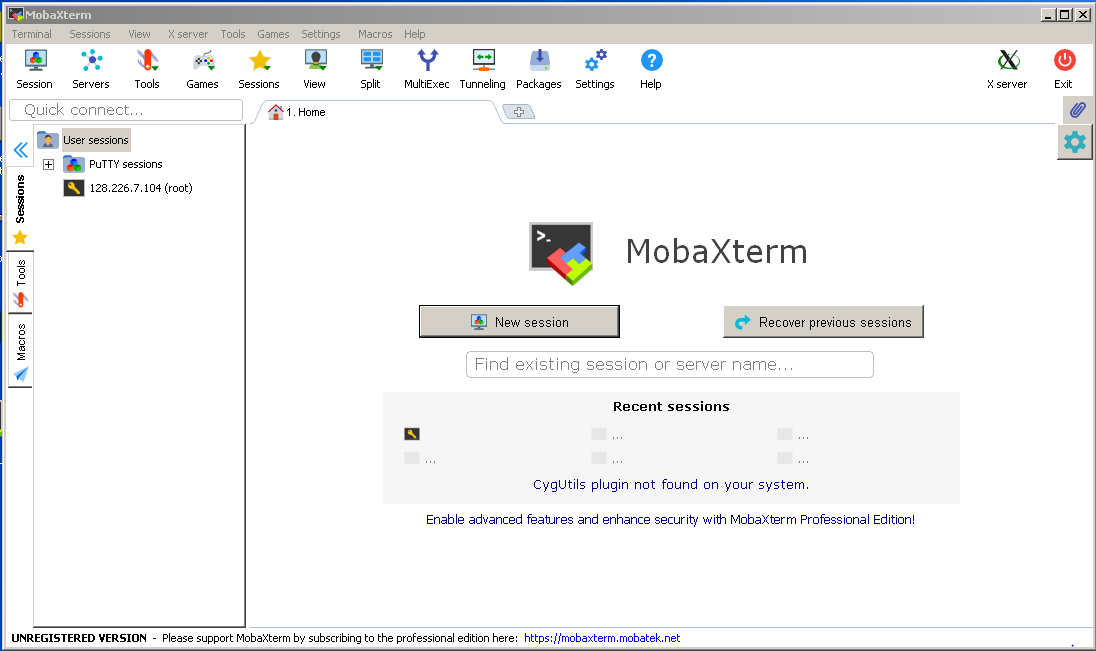
Launch the MobaX app by clicking the icon...
Click The New session Button ....
Remote host: harveyv.binghamton.edu Check Specify username: <PODS username>.
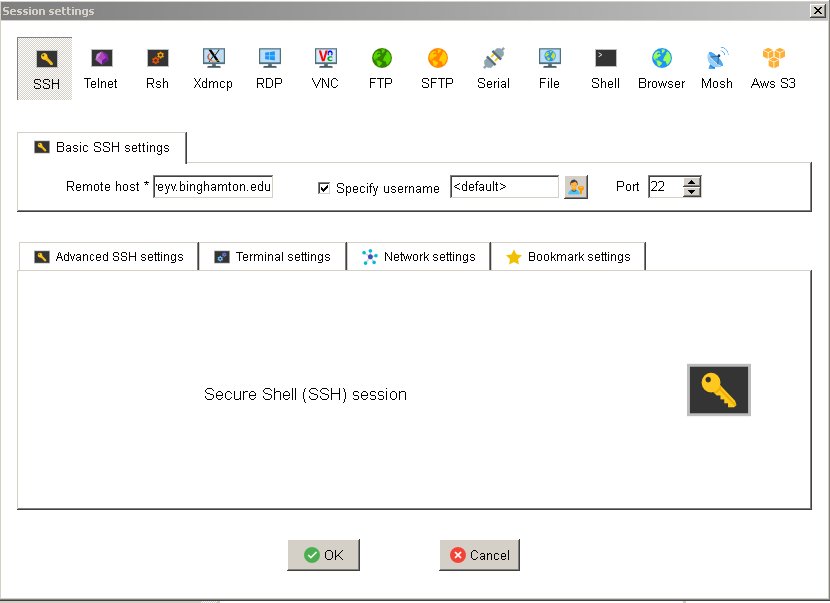
Click the OK button.
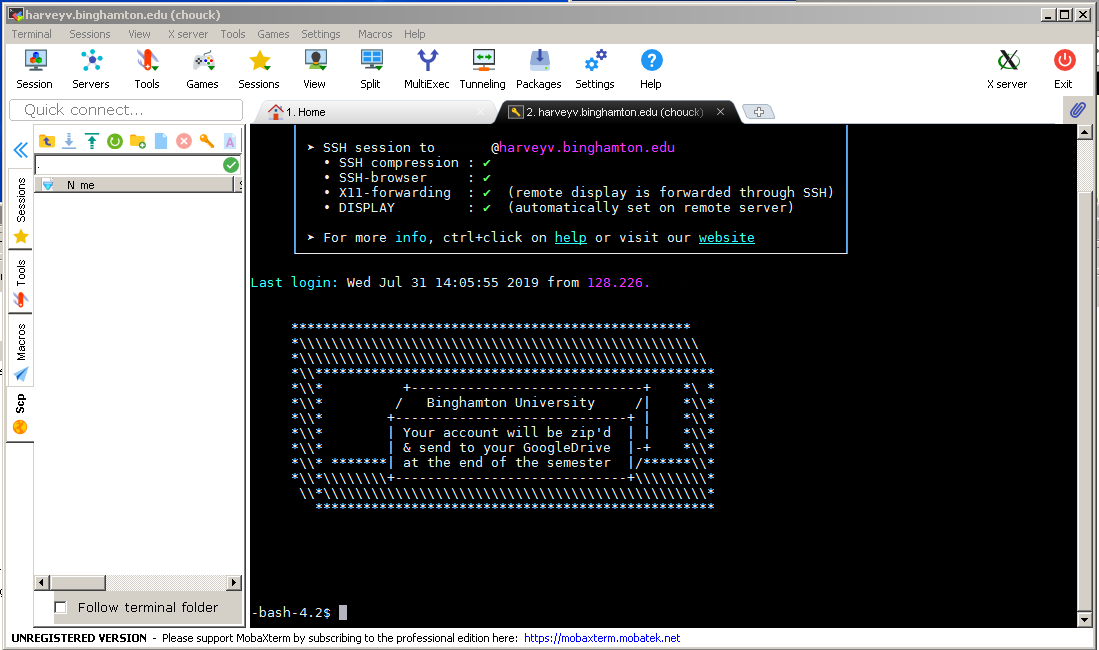
And you should be connected to your account on harveyv.
If you choose not to use the values supplied here, your install will not be supportable.
IMPORTANT: If the value for an input prompt> is blank. Hit the [Enter] Key.
-bash-4.2$ rclone config
2019/07/31 09:53:02 NOTICE: Config file "/u0/users/<your user name>/.config/rclone/rclone.conf" not found - using defaults
No remotes found - make a new one
n) New remote
s) Set configuration password
q) Quit config
n/s/q> n
name> GDrive
Type of storage to configure.
Enter a string value. Press Enter for the default ("").
Choose a number from below, or type in your own value
 1 / A stackable unification remote, which can appear to merge the contents of several remotes
   \ "union"
 2 / Alias for a existing remote
   \ "alias"
 3 / Amazon Drive
   \ "amazon cloud drive"
 4 / Amazon S3 Compliant Storage Provider (AWS, Alibaba, Ceph, Digital Ocean, Dreamhost, IBM COS, Minio, etc)
   \ "s3"
 5 / Backblaze B2
   \ "b2"
 6 / Box
   \ "box"
 7 / Cache a remote
   \ "cache"
 8 / Dropbox
   \ "dropbox"
 9 / Encrypt/Decrypt a remote
   \ "crypt"
10 / FTP Connection
   \ "ftp"
11 / Google Cloud Storage (this is not Google Drive)
   \ "google cloud storage"
12 / Google Drive
   \ "drive"
13 / Hubic
   \ "hubic"
14 / JottaCloud
   \ "jottacloud"
15 / Koofr
   \ "koofr"
16 / Local Disk
   \ "local"
17 / Mega
   \ "mega"
18 / Microsoft Azure Blob Storage
   \ "azureblob"
19 / Microsoft OneDrive
   \ "onedrive"
20 / OpenDrive
   \ "opendrive"
21 / Openstack Swift (Rackspace Cloud Files, Memset Memstore, OVH)
   \ "swift"
22 / Pcloud
   \ "pcloud"
23 / QingCloud Object Storage
   \ "qingstor"
24 / SSH/SFTP Connection
   \ "sftp"
25 / Webdav
   \ "webdav"
26 / Yandex Disk
   \ "yandex"
27 / http Connection
   \ "http"
Storage> 12
** See help for drive backend at: https://rclone.org/drive/ **

Google Application Client Id
Setting your own is recommended.
See https://rclone.org/drive/#making-your-own-client-id for how to create your own.
If you leave this blank, it will use an internal key which is low performance.
Enter a string value. Press Enter for the default ("").
client_id>
Google Application Client Secret
Setting your own is recommended.
Enter a string value. Press Enter for the default ("").
client_secret>
Scope that rclone should use when requesting access from drive.
Enter a string value. Press Enter for the default ("").
Choose a number from below, or type in your own value
 1 / Full access all files, excluding Application Data Folder.
   \ "drive"
 2 / Read-only access to file metadata and file contents.
   \ "drive.readonly"
   / Access to files created by rclone only.
 3 | These are visible in the drive website.
   | File authorization is revoked when the user deauthorizes the app.
   \ "drive.file"
   / Allows read and write access to the Application Data folder.
 4 | This is not visible in the drive website.
   \ "drive.appfolder"
   / Allows read-only access to file metadata but
 5 | does not allow any access to read or download file content.
   \ "drive.metadata.readonly"
scope> 1
ID of the root folder
Leave blank normally.
Fill in to access "Computers" folders. (see docs).
Enter a string value. Press Enter for the default ("").
root_folder_id>
Service Account Credentials JSON file path
Leave blank normally.
Needed only if you want use SA instead of interactive login.
Enter a string value. Press Enter for the default ("").
service_account_file>
Edit advanced config? (y/n)
y) Yes
n) No
y/n> n
Remote config
Use auto config?
 * Say Y if not sure
 * Say N if you are working on a remote or headless machine
y) Yes
n) No
y/n> y
If your browser doesn't open automatically go to the following link: http://127.0.0.1:53682/auth
Log in and authorize rclone for access

You will need to open a second window and start firefox on HarveyV in your account to load the link: /usr/bin/firefox&


Waiting for code...

Go to the Browser Window that has opened and login to your Google Account and follow the directions, ALLOW RCLONE.

Got code
Configure this as a team drive?
y) Yes
n) No
 y/n> n
--------------------
[GDrive]
type = drive
scope = drive
token = {"access_token":"ya29.GltWBwIQsaSRHqUeTszZrbHKAdfFVce_OsPQkdSf5oaSHUzVfqsA4NHJIupJswp6dDwQOdt6yYYml3E1MkpdXXw5VwlTY4GDDt7BDjHJa94Uis789KFFL4PaJ94k","token_type":"Bearer","refresh_token":"1/vVOp945ZZT5f5ndEG9sLL8V60pafqJhkWs6OEE_L-UQ","expiry":"2019-07-31T10:54:27.974036488-04:00"}
--------------------
y) Yes this is OK
e) Edit this remote
d) Delete this remote
 y/e/d> y
Current remotes:

Name                 Type
====                 ====
GDrive               drive

e) Edit existing remote
n) New remote
d) Delete remote
r) Rename remote
c) Copy remote
s) Set configuration password
q) Quit config
e/n/d/r/c/s/q> q
Make a mountpoint, add an entry to unmount your google drive when you logout and mount the google drive...
-bash-4.2$ mkdir gdrive
-bash-4.2$ echo "/usr/bin/fusermount -u gdrive" >> ~/.bash_logout
Now test your mount...
-bash-4.2$ /bin/rclone mount GDrive: ~/gdrive/ &
You can add the mount entry to your .bash_profile file.
